

Augmented Reality / View In Your Space®
A guide on enabling AR and View In Your Space functionality
The Epigraph Configurator Lite supports Augmented Reality/View In Your Space® through two different methodologies. The first being the built-in AR functionality within the UI. The other being API based.
This guide will cover the use of the Epigraph Configurator Lite API to enable AR on desktop and mobile.
The following guide assumes that EPIGRAPH_CONFIGURATOR_LITE is a reference to the Epigraph Configurator Lite on the page, assigned by ID or some other Query Selector. It should reference the Configurator Lite on the page that you wish to interact with from AR.
If creating a stand-alone button to launch Augmented Reality(AR), we will want to assign a function to an onclick listener for the button that is presented to the end user.
We will start by highlighting the important API calls necessary to expose the correct functionality to the current user.
canLaunchAR()
Link: https://clite-api-docs.myepigraph.com/classes/AppApi#canLaunchAR
Because not all devices support AR, the user flow will be different based on the device type and AR support for the user. canLaunchAR() will return whether or not the device the user is on supports web-based AR. This is help as it can tell us whether we should attempt to launch directly into an AR context or if we should display a QR that the user can scan with a device that does support AR.
getViewInYourSpaceQr()
Link: https://clite-api-docs.myepigraph.com/classes/AppApi#getViewInYourSpaceQr
In the event that a user can't open AR on their current device, we provide a way to generate a QR code that if scanned, will take the user back to the current page, from a device that does support AR.
This will generate a unique identifier for the exact configuration on screen and will append this identifier to the query parameters of the QRCode link. In addition to the identifier, there is also a flag appended to the query parameters that prompts the user to open AR once the page is opened on the new device.
viewInYourSpace()
Link: https://clite-api-docs.myepigraph.com/classes/AppApi#viewInYourSpace
The viewInYouSpace() function will launch AR on any device that is currently supported. Due to limitations imposed by the iOS and iPad OS operating systems, we are unable to determine whether AR was successfully launched on these devices. For this reason, a Promise is returned, but always as a successful response. This is the reason that is important to check that the user can access AR before calling the View In Your Space® function.
Control Flow and Function Declaration
Below we will run through the control flow on how to launch AR using either the QR Code or calling ViewInYourSpace®.
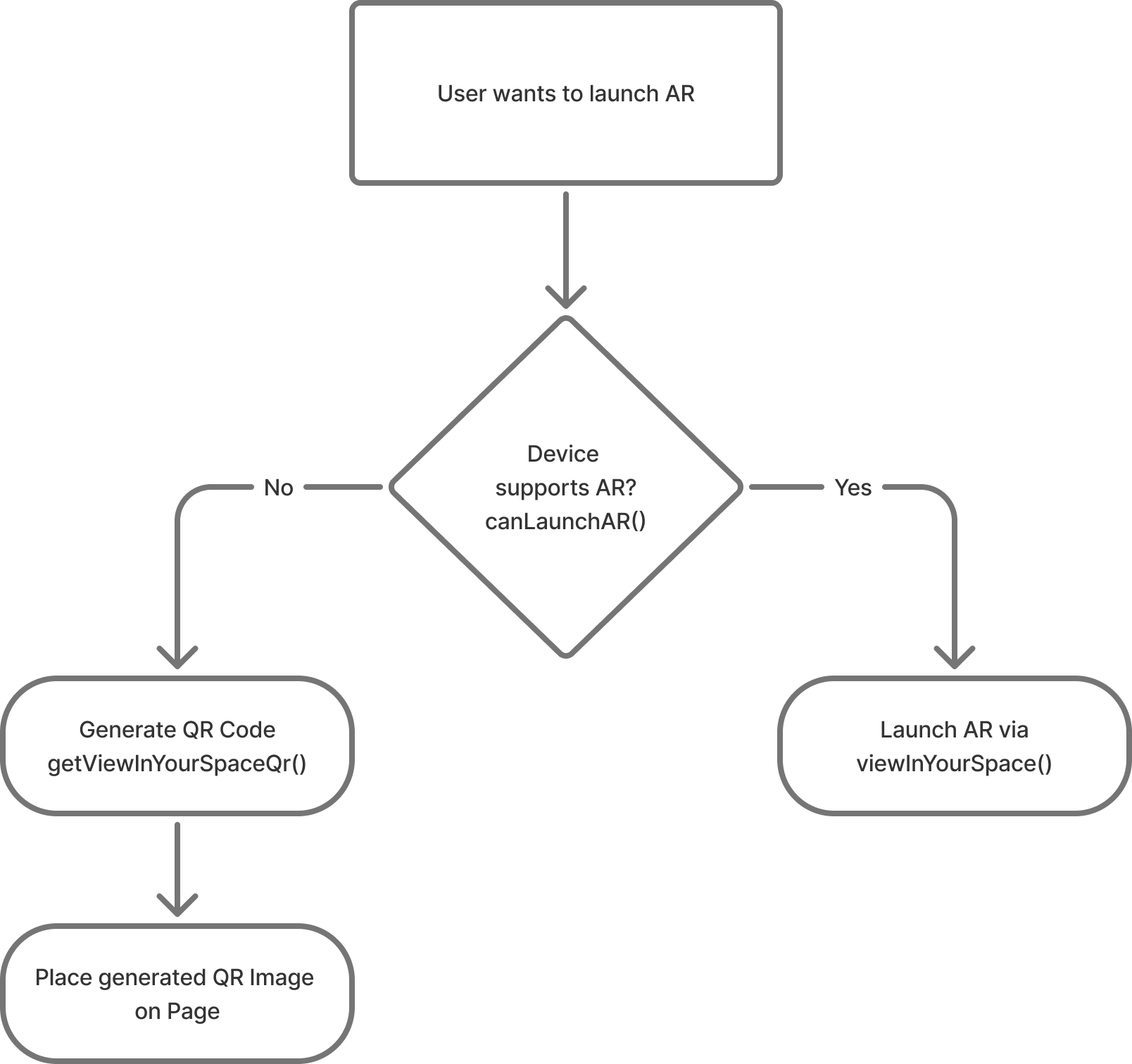
The following function runs through this control flow. It first checks to see whether the current device supports AR. If it does, it call the API to launch AR via the viewInYouSpace() function call. If the device doesn't support AR, we instead generate a QR code and set the src of an <img> component equal to the qrUrl that was generated.
async function launchAr() {
  if (EPIGRAPH_CONFIGURATOR.api.canLaunchAR()) {
    await EPIGRAPH_CONFIGURATOR.api.viewInYourSpace();
  } else {
    const qrUrl = await EPIGRAPH_CONFIGURATOR.api.getViewInYourSpaceQr();
    let qrImageHolder = document.getElementById('qrImageHolder');
    qrImageHolder.src = qrUrl;
    //Show Image in a modal or some other means of displaying to the user.
  }
}
Finally, we might have a button on the page that triggers this call like the following:
<button onclick="launchAr()">View In Your Space </button>Updated over 1 year ago