

3D Asset Specifications
Introduction
To deliver high-quality, interactive product experiences through our 3D online configurators, we rely on clean, optimized, and visually accurate 3D assets. The following guides outline the standards and specifications required for all 3D models submitted for use across our configurator solutions.
Whether you’re creating assets for furniture, machinery, consumer products, or industrial tools, following these guidelines ensures consistent performance, fast load times, and a seamless experience for end users. These specifications have been developed to balance visual fidelity with real-time performance across devices and browsers.
General Requirements
Below is a breakdown of the required standards for 3D .glb assets used across our configurator platforms.
Use the free modelviewer.dev/editor to preview.glbfiles and validate lookdev, compression, lighting, and orientation.
Geometry
| Feature | Requirement |
|---|---|
| Triangle Count | Max 200,000 triangles. Higher counts allowed with approval. |
| Internal Geometry | Remove non-visible internal faces unless they are exposed in-view. |
| Watertight Meshes | Avoid open edges unless intentional (e.g., cutaways, open models). |
| Mesh Merging | Merge objects that share a material to reduce draw calls. |
| Floating Decals | Allowed for small repeated details or labels/graphics. |
Unoptimized meshes with unnecessary subdivisions or hidden geometry can impact load times and real-time performance.
UV Mapping
| Feature | Requirement |
|---|---|
| UV Unwrapping | Fully unwrapped. No overlapping unless intentionally tiled. |
| UV Channels | UV1: Tiling and material textures UV2: AO/lightmaps |
| Padding | Minimum 4px padding between UV islands to prevent texture bleeding. |
| Orientation | UV islands should be logically oriented and scaled appropriately. |
Ensure UV2 is non-overlapping and evenly packed — issues with AO or lightmap baking often originate from incorrect UV layouts.
Textures & Materials
| Feature | Requirement |
|---|---|
| Materials | Use PBR (Physically Based Rendering) materials only. |
| Procedural Shaders | Must be baked into image textures. No procedural setups. |
| Texture Resolutions | Use power-of-two sizes: 256, 512, 1024, 2048 px. |
| Resolutions | Default: 1024px. Hero assets may use 2048px. |
| Texture Count | Keep to the minimum number of textures needed for quality. |
| Normal Maps | Use OpenGL (Y+) format. Bake from high-poly if needed. |
| Transparency | Use alpha maps only when required. Avoid excessive opacity materials. |
| Texel Density Consistency | Assets using tiling fabrics on UV1 must maintain uniform texel density for consistent material scaling. |
Maintain consistent texel density across product variants to ensure fabrics and textures appear uniformly scaled in the viewer.
File Packaging & Naming
| Feature | Requirement |
|---|---|
| File Format | Deliver as a single.glb with embedded textures. |
| Real-World Scale | Models must be authored in meters. |
| Pivot Point | Set the origin to (0, 0, 0) at the logical base of the asset. Asset should rest above origin plane. |
| KHR Extensions | Only KHR_draco_mesh_compression is permitted. All other KHR extensions must be explicitly approved. |
| Naming Convention | Naming format is defined per project, but follows:[email protected]Example: [email protected] for a blue chair variant. |
Stick to consistent file naming for variant tracking and automated asset management.
Blender Settings
When creating and exporting 3D assets from Blender for use in real-time configurators or web viewers, it's important to optimize both visuals and performance. Below are recommended practices to ensure compatibility and visual fidelity.
Color Management
| Setting | Value |
|---|---|
| Display Device | sRGB |
| View Transform | Filmic |
| Look | Medium High Contrast |
| Exposure | 0.0 (default) |
| Gamma | 1.0 (default) |
Using Filmic / Medium High Contrast closely mimics the ACES2 tonemapping used in many web-based GLTF/GLB viewers, including modelviewer.dev.
GLB Export Settings
| Option | Recommendation |
|---|---|
| Export Format | .glb (Binary glTF) |
| Apply Modifiers | ✅ Yes |
| Apply Transforms | ✅ Yes |
| +Y Up | ✅ Yes (match glTF coordinate system) |
| Include Custom Properties | ❌ No (unless used intentionally) |
| Compression (Draco) | ✅ Yes (reduces file size for meshes) |
| Image Compression | ✅ Yes (enabled under Export > Geometry settings) |
| Export Selected Only | ✅ Yes (avoid exporting unused geometry) |
Enable Draco mesh compression and image compression during export to reduce file size and improve load times.
'glTF Settings' for Materials and AO
By default, Blender’s material output doesn’t include ambient occlusion (AO) support. To ensure AO maps are exported with your GLB assets, you’ll need to add a node group named glTF Settings to your material graph. Ensure this naming is consistent. You can share or append this node group in any number of materials.
This node group doesn’t require anything complex—just a single input labeled Occlusion. The Blender GLB exporter looks for this specific setup to correctly attach your AO texture during export.
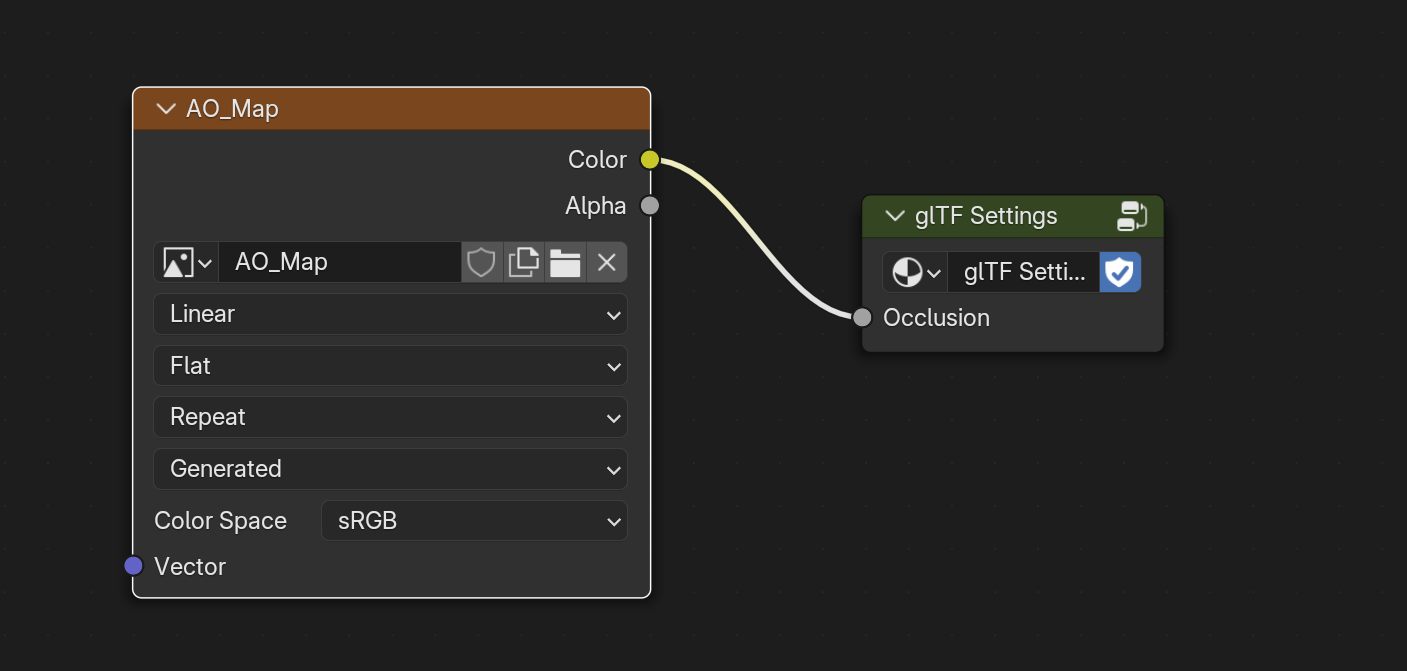
You can use a Separate RGB node to remap RGB channels to specific material properties.
PBR Texture Handling
Here are the recommended maps for most common PBR materials:
| Map Type | Format | Notes |
|---|---|---|
| Base Color | JPG | Use high-quality JPEG for efficient color maps. |
| Roughness | JPG | Monochrome maps are safe as JPEGs. |
| Metalness | JPG | Can be combined with other grayscale maps in channels. |
| AO | JPG | JPEG is acceptable for ambient occlusion. |
| Normal Map | PNG | Recommended PNG only to avoid compression artifacts. |
| Opacity/Alpha | PNG | Only needed if transparency is used. Use a black base color where there is transparency to avoid white outlines. |
Upon export, occlusion, roughness, and metalness by default get channel packed as a singular 'ORM' image.
Miscellaneous Tips
- Limit Emission: Avoid emission materials unless intentionally used (e.g., indicators, screens).
- Check Pivot & Scale: Origin should be at
(0, 0, 0)and scale should be applied (Ctrl+A > Scale). - Real-World Scale: Model in meters for accurate size and lighting behavior.
- Keep Node Graphs Clean: Final exported material must be GLTF-compatible — no unsupported nodes or live procedural shaders.
- Bake Procedural Textures: Use
CyclesorEEVEEbaking workflows to convert procedural shaders into image textures.
Use Blender’s EEVEE viewport mode to perform look-dev before export.
Updated about 1 year ago