
Camera Manipulations
A guide on all expose Camera Manipulation options, exposed via the API
This solution exposes an API for camera manipulation that allows a developer to either trigger the existing camera systems or expand on them as they wish.
- To move the camera manually to a new position when you are in "both" state, use this call
EPIGRAPH_CONFIGURATOR.api.moveCameraToCameraViewById(<a_valid_camera_view_id>);
// <a_valid_camera_view_id> explained below- A "camera view" consists of a predefined camera position & settings in the scene. These "camera views" are provided to you by Epigraph to ease the process of setting them up, since attaining and providing all of the required information by yourself can be tedious and time-consuming without prior knowledge of the camera systems in 3D engines.
To retrieve a list of all available camera views, you could use the method below.
EPIGRAPH_CONFIGURATOR.api.getAllCameraViewIds();
// ["front-view", "side-view"]
Missing Camera ViewsIf there is a view that you feel is missing or you need additional camera views, please reach out to the Epigraph team and we can work together to create new camera views.
Adjusting Camera Zoom Limits
Caution: Camera Zoom LimitsEpigraph does it's best to set reasonable camera limits. Adjusting camera limits may create poor user experience as model fidelity may not meet requirement on new limits and setting larger "maxDistance" limits may allow users to zoom and get lost in the scene. Proceed with caution.
Though we do set some logical zoom limits on our end, there might be a use-case for setting custom zoom limits at runtime. In order to achieve that you may call:
EPIGRAPH_CONFIGURATOR.api.setCameraZoomLimits({ minDistance: 0.2, maxDistance: 4 });

// Optional: You can call this method right after to trigger an update, that will auto adjust camera based on what's in the scene. For example, if you change max zoom limit above from 10 to 4 and call this method, it will focus the camera closer to now abide by the new limit of 4.
// If not, the camera will readjust when the usr interacts with it the next time.
EPIGRAPH_CONFIGURATOR.api.onSceneHierarchyUpdate();
Default minDistance is 0.5 and maxDistance is set to 2.5.
Custom Camera Locations
The above documentation outlines how to select pre-defined camera locations that may be set by artists at the time of project set up. If no cameras are available but you would like to utilize the full functionality of the camera system, you can follow this guide.
To manipulate the camera using a custom location and target for your product, you can do so by manipulating the camera in your viewer and then retrieving and storing the camera location and position.
A good use-case for this might be that you have a custom call-out on you page that is used to highlight a particular part of a product. To make the functionality possible we'll first need to set the camera up by using the mouse interactions to place the camera in a position that it is wanted.
1. Move the Configurator Lite Camera
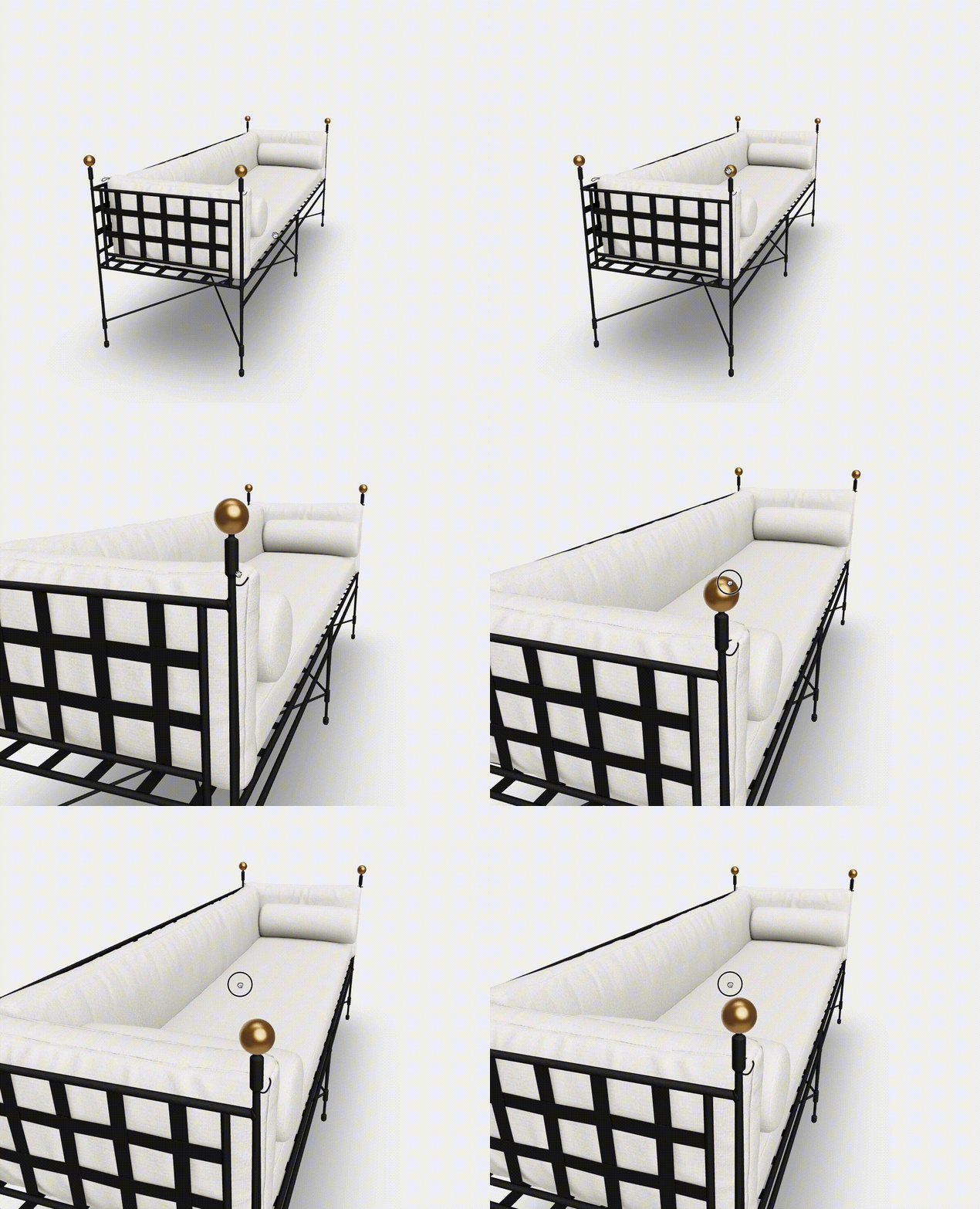
Using your own PDP, move the camera in the experience to the location that you would like your customers to view your product from. This can be seen in the image below.
2. Call the Configurator Lite to retrieve the Camera and Target Transforms
let cameraDetails = EPIGRAPH_CONFIGURATOR.api.getCurrentCameraTransforms();

//Output:
{
    "camera": {
        "position": {
            "x": 4.439368330500481,
            "y": 0.7372279103357008,
            "z": 4.677451128167482
        },
        "rotation": {
            "x": 0,
            "y": 0,
            "z": 0
        },
        "scale": {
            "x": 1,
            "y": 0.9999999999999999,
            "z": 1
        }
    },
    "target": {
        "position": {
            "x": 2.9802322387695312e-8,
            "y": 0.2799148989633302,
            "z": -2.086162567138672e-7
        },
        "rotation": {
            "x": 0,
            "y": 0,
            "z": 0
        },
        "scale": {
            "x": 0,
            "y": 0,
            "z": 0
        }
    }
}
3. Store the Camera & Target Transforms
Because this is a custom camera implementation, you'll want to store this object in your system so that you can retrieve it as needed. This can be done in a number of ways, either via a database, or as part of the page source.
4. Move the Camera for the customer when requested
Depending on when this camera movement is needed, you will want to trigger the camera update using the information that was pulled and stored in steps 2 and 3. In our example, we have a button with a label called "View Details" that triggers the camera update.
<script>
  let cameraDetails = yourOwnFunctionToRetrieveTheNeededCameraDetails();

  function viewDetails() {
    EPIGRAPH_CONFIGURATOR.api.moveCameraToLocation(cameraDetails.camera, cameraDetails.target)
  }
</script>

<button onclick="viewDetails()">View Details</button>
This code above assumes that you've store the camera details retrieved in Step 2 and then pulled it as necessary from your page. It also assumes you have access to the Configurator Lite through the constant EPIGRAPH_CONFIGURATOR.
Updated 5 months ago